
Download and install
Request the trial, download the installer with your personal link, run setup and create the first administrator of the console.
This article takes you from the request form on the website to a console you are signed in to. Plan to download right after you send the form: the download link works for 15 minutes.
Before you start
- The server is ready: Requirements
- You can sign in to the server as a local administrator.
- You have an authenticator app on your phone.
Request and download
- Open magenxsecurity.com/trial.
- Fill in Full name, Job title, Work email and Company, choose an answer under What will you focus on?, and tick the box to agree to the Free Trial Terms and the Privacy Policy.
- Select Email me the link. The page shows Check your inbox.
- Open the email with the subject Your MagenX Free Trial download link and select Download the Free Trial. The link is yours alone and works for 15 minutes. The email shows the time at which it ends. If nothing arrives after a minute or two, look in your junk folder.
- On the page Your download is ready., tick I have read and agree to the Free Trial Terms. and select Download. The browser saves a file whose name starts with
MagenX-Trial-Setup. - If you downloaded the file on another computer, copy it to the server.
Confirm the file in the browser and in Windows
- If the browser asks whether to keep the downloaded file, keep it.
- If Windows shows Windows protected your PC when you start the file, select More info, then Run anyway.
- Windows asks whether the installer may make changes to the server. Select Yes.
Important: Run only the file that you downloaded yourself from your personal link.
Run setup
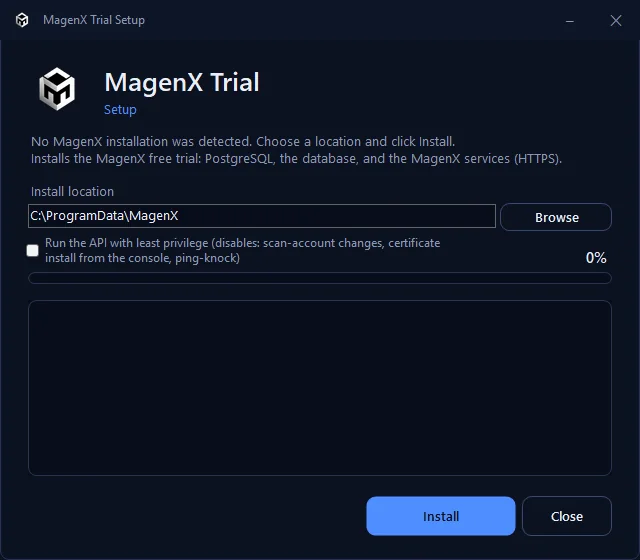
- On the server, start the downloaded file. The MagenX Trial Setup window opens.
- Under Install location, keep
C:\ProgramData\MagenX, or select Browse to choose another folder. - Leave the option that starts with Run the API with least privilege unticked.
- Select Install. The window shows the current step, a percentage and a log. Setup installs the database and the MagenX services, creates an HTTPS certificate, opens the console's port in Windows Firewall and adds the Windows tools that scans use. Leave the window open until it finishes.
When the window shows Installation complete., read the lines under it:
- Dashboard: the address of the console. It is
https://server01:8443, with the name of your server. - Access: how the console is reached from your network.
- Dashboard: the address of the console. It is
- Select Open dashboard, then Finish.
The 30 days of the trial start when the installation finishes.
Create the first administrator
Do this in a browser on the server itself. The first administrator cannot be created from another computer.
- The browser warns about the certificate, because setup created the certificate itself. Continue to the site.
- On Create the first administrator, enter a Username and a Password. Email (optional) can stay empty. The username needs at least 3 characters. The password needs at least 12 characters, with upper-case letters, lower-case letters and a digit.
- Select Create admin & sign in.
- Sign in with the new account. The console shows Set up two-factor authentication.
- Scan the QR code with your authenticator app, enter the 6-digit code under Authentication code and select Verify & enable.
The console opens on the Dashboard, with the Quick setup card at the top.
Open the console later
- On the server: in the Start menu, open MagenX > MagenX Dashboard.
- From another computer on your network: open
https://server01:8443, with the name of your server. Sign-in and the authenticator code are required there too.
Troubleshooting
See Troubleshooting.
Next step
Having an issue? Open Troubleshooting. Still stuck? Write to support@magenxsecurity.com.
Last revised 2026-11-18.