
Quick setup
Complete the Quick setup card on the Dashboard by choosing the domain, a domain controller and the subnet, then start the first scan.
After the first sign-in, the Dashboard starts with the Quick setup card. Its three steps connect your domain and start your first scan. The card stays until the first scan exists.
Before you start
- You are signed in as the administrator you created: Download and install
- You know which domain to assess and which subnet Asset Discovery should cover: What the trial includes
Important: The trial assesses one domain and runs Asset Discovery once, on one subnet. Your choices on this card decide both.
Step 1: Your domain
- Check the name in the field. On a server that is a member of a domain, the card fills in the server's own domain. To assess another domain, type its DNS name, for example
corp.example.com. - Select Find domain controllers. The card lists the domain controllers of that domain in step 2. When the card filled in the domain for you, the list is already there.
Step 2: Domain controller
- Choose a domain controller from the list, or keep Automatic. With Automatic, MagenX chooses a domain controller.
- Select Save and continue. Steps 1 and 2 now show your choices. Select Change to edit them before the first scan starts.
Step 3: First scan
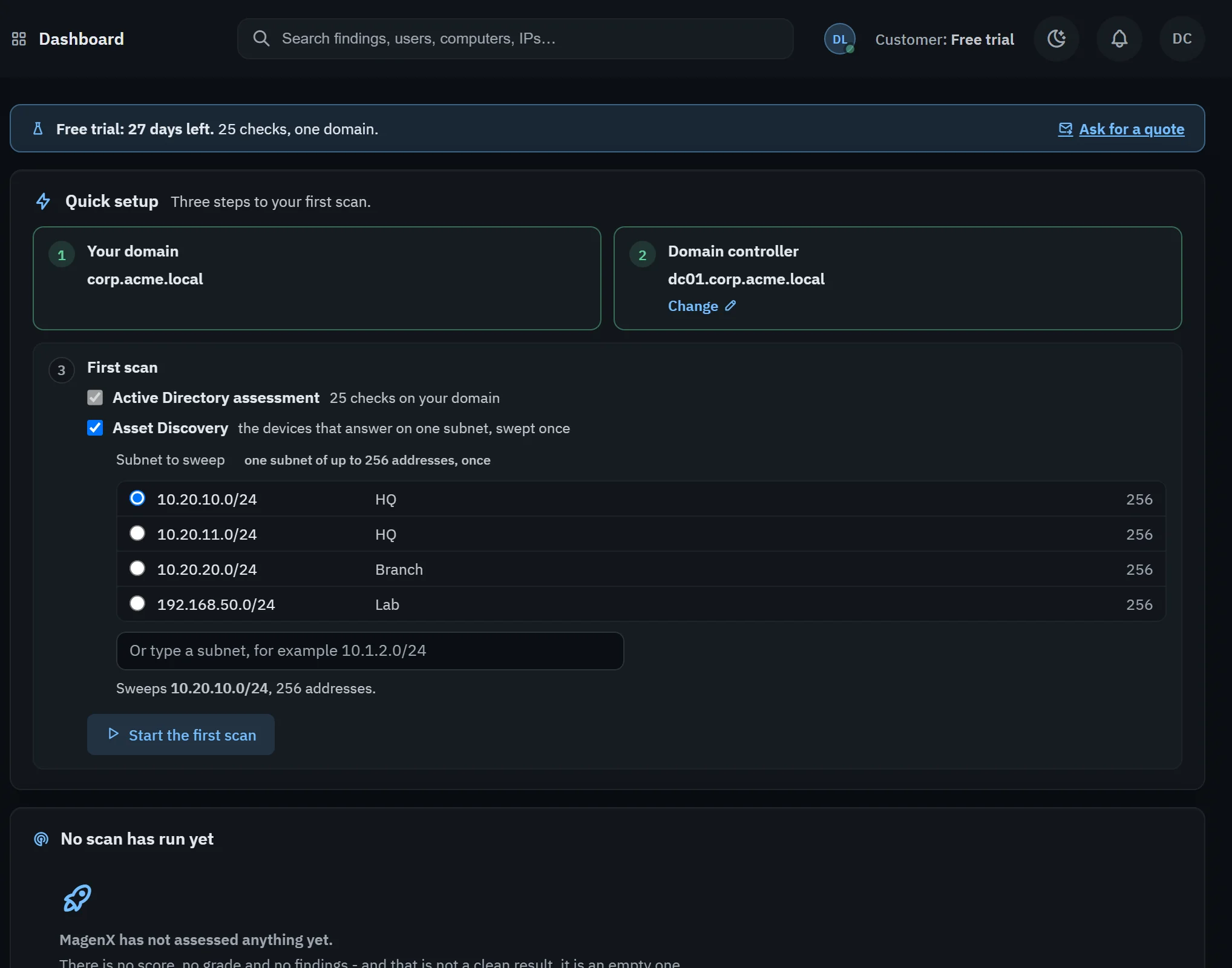
| Choice | What it does |
|---|---|
| Active Directory assessment | Always part of the first scan. It cannot be unticked. |
| Asset Discovery | Ticked at first. Untick it to run Asset Discovery later from Scan Runs. |
| Subnet to sweep | The one subnet that Asset Discovery covers. |
- Wait until the card has read the subnets that Active Directory documents.
Under Subnet to sweep, choose one subnet:
- Pick a subnet from the list. Each row shows the subnet, its site and its number of addresses. The first subnet is selected for you: change it if it is not the one you want.
- Or type a subnet in the field, for example
10.0.10.0/24. A typed subnet does not have to be in the list.
- Read the line under the field. It names what will be covered, for example Sweeps 10.0.10.0/24, 256 addresses.
- Select Start the first scan. The console shows The first scan is queued. and opens Scan Runs.
Rules for the subnet
- A /24 or smaller: at most 256 addresses.
- In a private range:
10.0.0.0/8,172.16.0.0/12or192.168.0.0/16. - An address typed without a prefix means the /24 around it.
- A subnet that Active Directory documents as larger than a /24 is not offered in the list. Type a /24 inside it.
What you see next
The scan appears on Scan Runs. Once it exists, the Quick setup card on the Dashboard gives way to the guide Your first hour with the free trial, which ticks off four steps as you complete them: Connect your domain, Run the first assessment, Open a follow-up and Re-test it.
Troubleshooting
| Issue | What to do |
|---|---|
| Type the domain's DNS name, for example corp.example.com. | Type the full DNS name of the domain, not its short name. |
| No domain controller was listed for your domain | Check that the server resolves the domain in DNS. You can keep Automatic and select Save and continue. |
| No subnet is listed | Active Directory documents no subnet. Type the subnet in the field. |
| A message under the subnet field that does not start with Sweeps | The subnet breaks one of the rules above. Change it until the line starts with Sweeps. |
| The Quick setup card is not on the Dashboard | A scan already exists or is running. Set the domain under Settings > Connections and start scans from Scan Runs. |
More problems and their actions: Troubleshooting
Next step
Having an issue? Open Troubleshooting. Still stuck? Write to support@magenxsecurity.com.
Last revised 2026-11-18.