
Your first scan
Follow the first scan on Scan Runs, open its results, and run the Active Directory assessment again whenever you want.
The first scan starts from the Quick setup card. This article shows how to follow it, what its states mean and how to scan Active Directory again during the 30 days.
Before you start
- Quick setup is complete, or the domain is set under Settings > Connections.
- A Windows session is open on the server, signed in with a domain account, while the scan runs. A scan reads Active Directory as that user: Requirements
Follow the scan
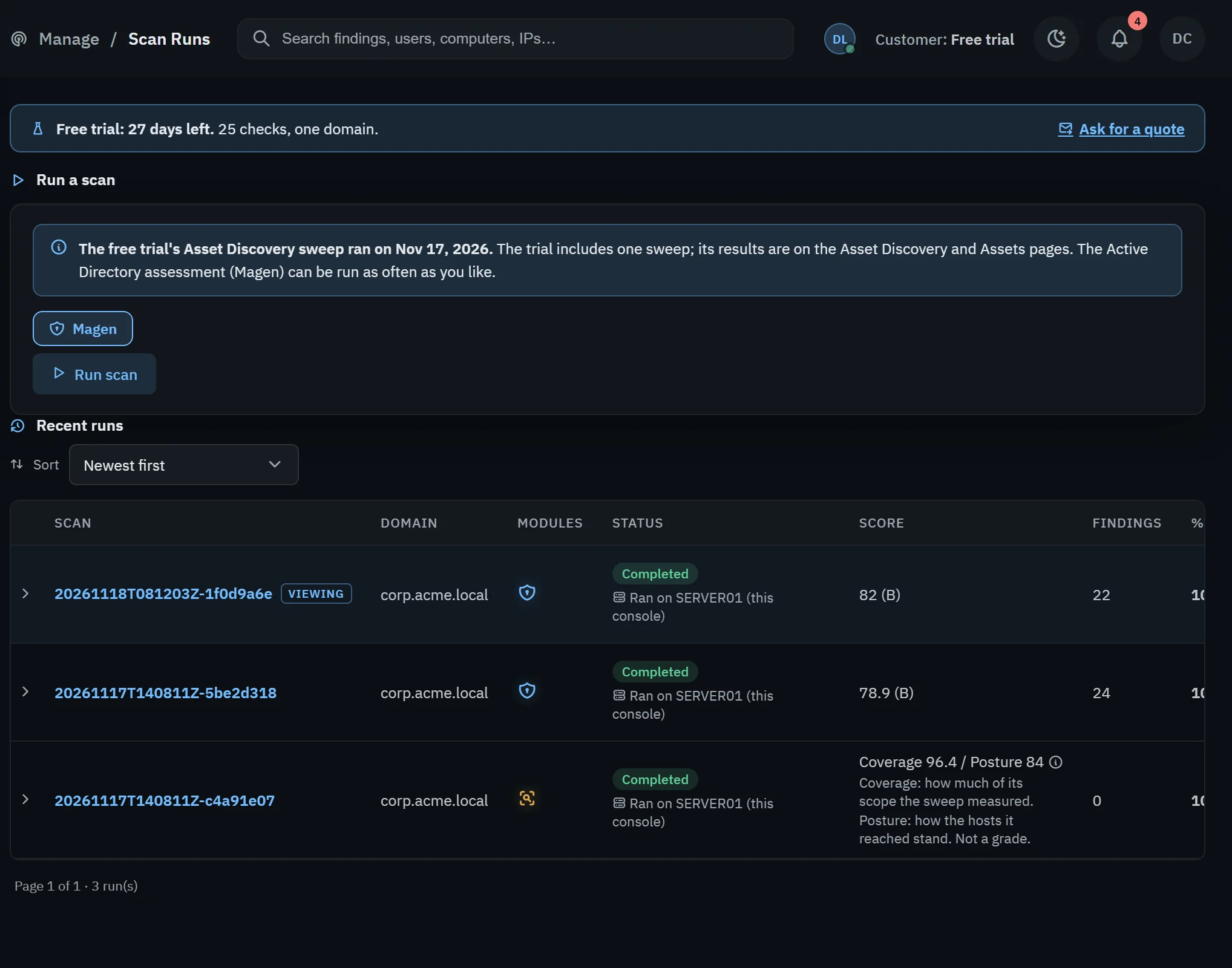
- Open Scan Runs. The scan is the first row under Recent runs.
- Read the Status column. The table below explains each state.
- Select the arrow at the left of the row to see the details of each part of the scan and its live log.
- To stop a running scan, select Cancel on its row.
| Status | Meaning |
|---|---|
| Queued | The scan waits to start. |
| A stage name with a percentage | The scan is running. The % and Duration columns move with it. |
| Completed | Every part of the scan finished. |
| PartiallyCompleted | The scan finished, but one part of it did not. The results of the parts that finished are there. |
| Failed | The scan did not finish, and it shows no results. |
| Cancelled | Somebody stopped the scan. |
When the scan has finished, select its name in the Scan column to open it, or open the Dashboard.
What you see
- The results for Active Directory are on the Dashboard and on the Magen page (Active Directory). See Read your results.
- The results of Asset Discovery are on the Asset Discovery and Assets pages. They are reported separately and add nothing to the findings or to the score. See Asset Discovery.
Run the Active Directory assessment again
You can scan Active Directory as often as you like during the 30 days, for example after you fixed a finding.
- Open Scan Runs.
- In the Run a scan card, make sure that Magen is selected. While Asset Discovery has not run yet, Discovery is selected as well. Select it to turn it off when you want a scan of Active Directory only.
- Select Run scan. The card shows Scan queued.
After the second scan, the Trial score line on the Dashboard shows the score of the first scan, the score of the latest scan and the change between them.
Tip: Retry on a row repeats that scan with the same parts. Once Asset Discovery has run, use Run scan instead for a row that included it.
Troubleshooting
| Issue | What to do |
|---|---|
| A window with the title The scan was not queued | Read the reason in the window. If no worker is running, select Open Health, then start the MagenX Worker service on the server. If another scan is running, wait until it finishes. |
| The row stays on Queued | Check on the server that the MagenX Worker service is running. |
| PartiallyCompleted or Failed | Select the arrow at the left of the row and read the message and the log. Then see Troubleshooting. |
Having an issue? Open Troubleshooting. Still stuck? Write to support@magenxsecurity.com.
Last revised 2026-11-18.